Owners of iPhones and iPods know about prices at iTunes. It is really too expensive to buy mp3 from iTunes. This is where LegalSounds comes into play. You can download music for just 9¢ per track from the site. Frankly speaking, that’s quite a saving, when iTunes charges $0.99 per song.
 Great news! But how do you get the music to your device?
If you’re anything like me, it’s all very confusing to start with! But don’t worry, if you do need a bit of help, or have no idea where to start, it’s not as tough as you think.
This guide will cover two things; getting the the music from LegalSounds to your PC and getting the music from your PC to your iPod.
Downloading from LegalSounds
Downloading music from LegalSounds is very easy. Once you’re registered and have some money on your account, you just need to start finding some music you want to download.
- Find an album, or track, you want to download.
- Tick the check box next track you want, of if you want the whole album, click ‘Select All’.
- Once the tracks or album you want are checked, click ‘Buy Selected’.
- You will be asked to confirm that you want to download the music and the amount that will be deducted from your account. Click OK to accept and buy the music.
- You will see ‘Purchase Succeeded’ and instructions on how to get the song to your PC. To do this, click ‘My Downloads’ on the ‘Purchase Succeeded’ page. (You can also get to ‘My Downloads’ at the very top of the site).
- ‘My Downloads’ contains all the music you have purchased from LegalSounds. You now need to download the tracks to your PC so you can use them. The ‘My Downloads’ screen has full instructions on how to do this, but if you need help, keep reading.
- Find the music you want to download. If you want to download tracks, right-click on the name of the track, if you want the whole album, right click on the name of the album.
- Click ‘Save Target As’ or ‘Save Link As’ and select a location. You can save your music wherever you want on your PC.
- If you want the music to go to your iTunes library, the best place to save the file is the iTunes folder, which is inside your ‘My Music’ folder.
- Navigate to this, if you’re using the latest version of iTunes, inside the iTunes folder will be another, ‘iTunes Media’.
- Inside there will be yet another folder called ‘Automatically Add to iTunes’.
- Save all your LegalSounds music here and iTunes will do the rest. It will add any music to your iTunes library that you put into that folder.
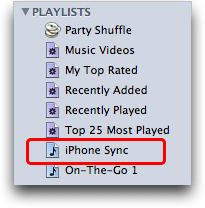
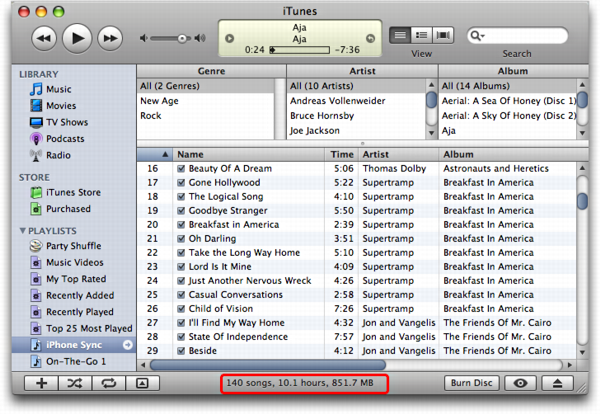
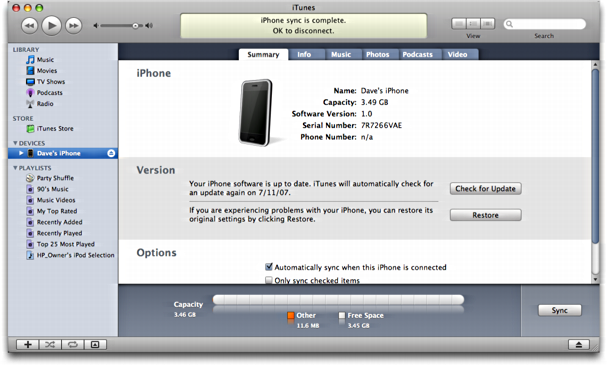
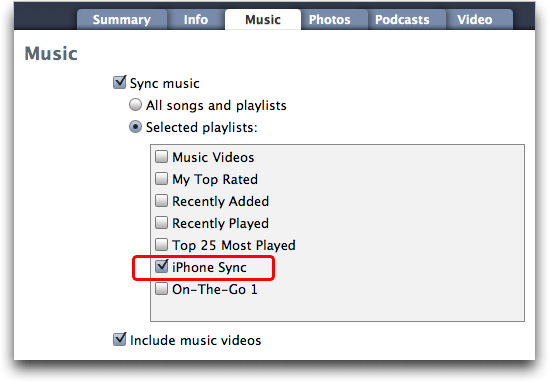
Hopefully all that will make sense! Once you have the music in your iTunes library, you can do what you want with it. To get the music to your iPod, plug in your iPod and you can then drag the songs across to it, ready for you to take with you anywhere you go.